How to Make a Bubble Answer Sheet in Word
The table-and-symbol-font method for building a bubble answer sheet in Word or Google Docs, why it breaks the moment your question count changes, and the faster route.

On this site: Make an answer sheet instead·Browse 100+ free printables·Play today's puzzles
"How do I make a bubble answer sheet in Word?" is the most common question people ask about answer sheets, and the honest answer is that Word can do it but fights you the whole way. Here is the method that works, the two places it breaks, and the shortcut.
📌 Key Takeaways
- A bubble answer sheet in Word is a table plus symbol-font circles, with an exact row height set by hand.
- It breaks when the question count changes and when the symbol font is substituted, which is what happens in Google Docs.
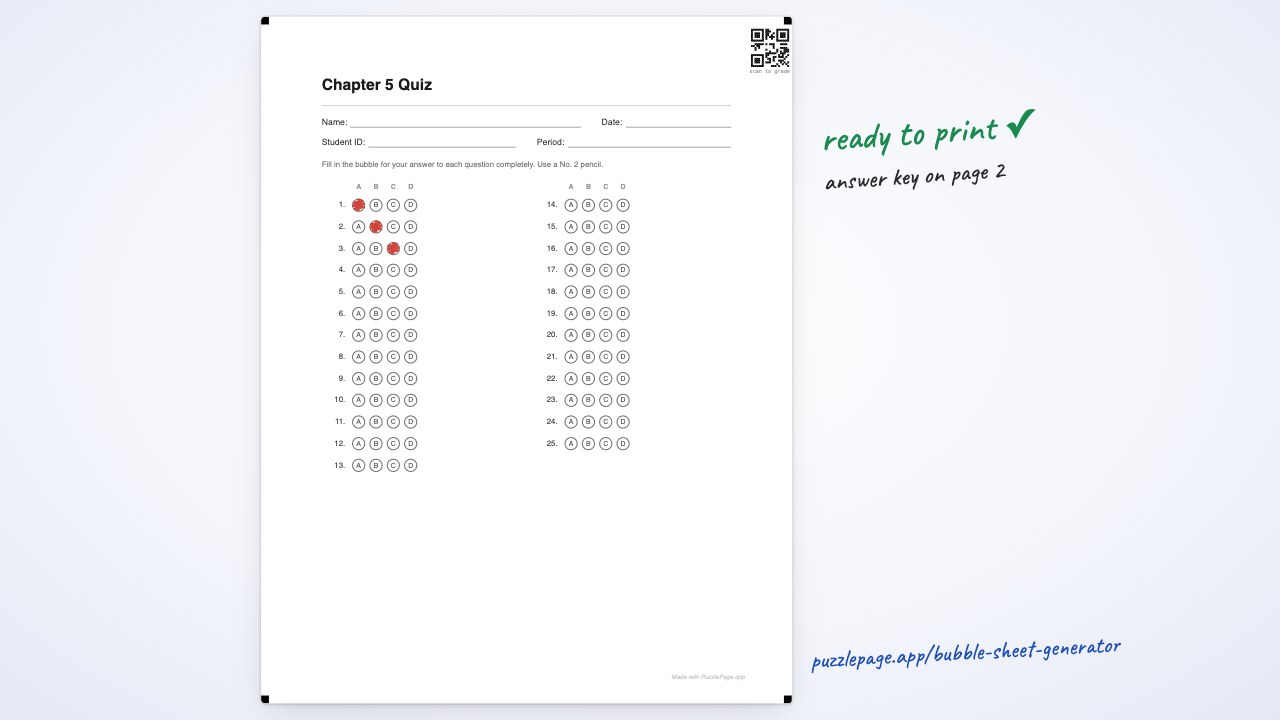
- Generating the sheet and exporting an editable Word file gives you the same file to edit without building the grid.
 1:05
1:05The Word method, step by step
This is the approach every template on the internet is a variation of. It takes about fifteen minutes the first time.
- Insert a table: one row per question, one narrow column for the question number, and one column per answer option.
- In each option cell, insert the open circle. In Word it is character 006F in Wingdings, or 25CB in the Symbol font.
- Centre each circle horizontally and vertically in its cell.
- Select the whole table, open Table Properties, and set an exact row height. Without this the rows size themselves to the text and the pitch wanders.
- Add a Name and Date line above the table using a bottom cell border, not a row of underscores.
- Hide the table gridlines so only your circles print.
For a 20-question sheet on Letter paper, a row height of about 0.28 inches and a 14pt circle gives students enough room to fill a bubble without the sheet running to two pages.
Like this? We send 10 of these every month.
Free printable puzzles, answer keys included — same quality as the ones in this post.
One email. Unsubscribe anytime.
Where the Word bubble sheet breaks
Two failures account for almost every complaint about hand-built sheets, and neither is your fault.
-
Changing the question count
Your unit test is 25 questions this term and 30 next term. Adding rows reflows the table, and the exact row height you set applies only to the rows that existed when you set it. The new rows come out a different size.
-
Symbol-font substitution
Wingdings is a Windows font. Open the file on a Mac, in Google Docs, or on a school laptop that has been reimaged, and the circles are replaced with whatever the system thinks is closest. Sometimes that is a square.
Pro Tip
If you do build it in Word, draw the circles as shapes rather than characters. Shapes do not substitute across platforms. The trade-off is that they do not flow with the table, so you are back to moving them by hand.
The faster route: generate, then edit
The reason people build these in Word is not that Word is good at it. It is that they want a file they can change later.
You can have both. Set the question count and options in the free bubble sheet generator, then export an editable Word file at the end instead of building the grid at the start. The circles are drawn as real shapes, so they do not substitute, and the text stays editable.
Changing the question count is then a number in a box rather than a rebuilt table.
What you can change without touching a table
- Question count, from 1 to 200.
- Two to six options, as A to F letters, ACT-style F to J, True and False, or plain numbers.
- Which header fields print: name, date, student ID, class, period, teacher, score, plus your own.
- Your school name and logo at the top.
- Letter or A4, and the instruction line in English or Spanish or your own wording.
Pro Tip
Paste your correct answers before you download. The PDF then includes a filled key page you can print on a transparency and lay over each sheet, which is the fastest way to grade a stack by hand. There is more on that in how to grade bubble sheets fast.
Which route to take
| Approach | Setup time | Changing the count later | Opens everywhere |
|---|---|---|---|
| Word table plus symbol circles | About 15 minutes | Rebuild the table | No, fonts substitute |
| Word table plus drawn shapes | About 30 minutes | Move every shape | Yes |
| Generate a PDF | Under a minute | Change one number | Yes |
| Generate, then export Word | Under a minute | Change one number | Yes |
Free PDFs carry a small credit line in the footer. A clean export is part of the paid Classroom plan, along with the editable Word file.
If your test is a one-off and you already have a Word template that works, keep using it. If the question count changes every unit, the table is the thing costing you the time.
Frequently Asked Questions
How do I make a bubble answer sheet in Word?
Insert a table with one row per question and one column per option, then place a circle from the Wingdings or Symbol font in each cell. Set an exact row height in Table Properties so the circles keep a consistent pitch. It works, but every change to the question count means rebuilding the table.
Is there a bubble sheet template for Google Docs?
Google Docs has no built-in one, and a Word template loses its circle alignment when Docs substitutes the symbol font. Generating the sheet and exporting an editable Word file avoids the substitution entirely, because the circles are drawn as shapes.
Why do the circles move when I change the question count?
Word tables reflow when rows are added, and symbol characters sit on the text baseline rather than in the middle of the cell. Both shift as soon as the table height changes, which is why hand-built sheets drift out of alignment over a term.
Can I edit the sheet after generating it?
Yes. The editable export opens in Word, and in Google Docs through File then Open, with the text still editable. You can change the title, the instructions and the header fields without rebuilding anything.
More you can make here
One puzzle is the start. Here is the rest of the kit.
 New
NewWorksheet Builder
Put a word search, a cryptogram and a scramble on one page, or build a whole themed packet. Prints with answer keys.
Build a worksheet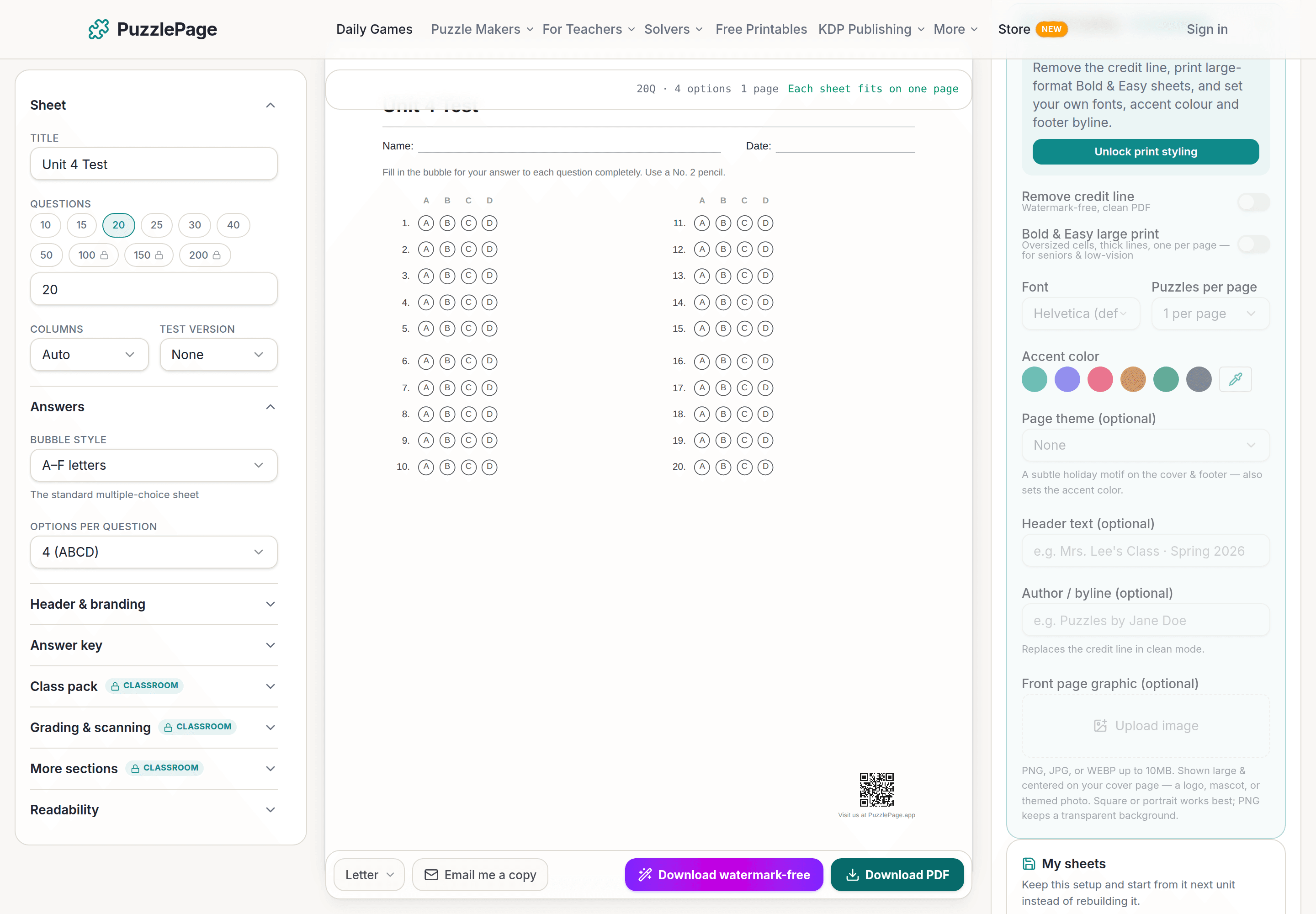
Bubble Sheet Studio
Answer sheets for any test length, with sections, versions, student ID grids and a matching answer key.
Make a bubble sheet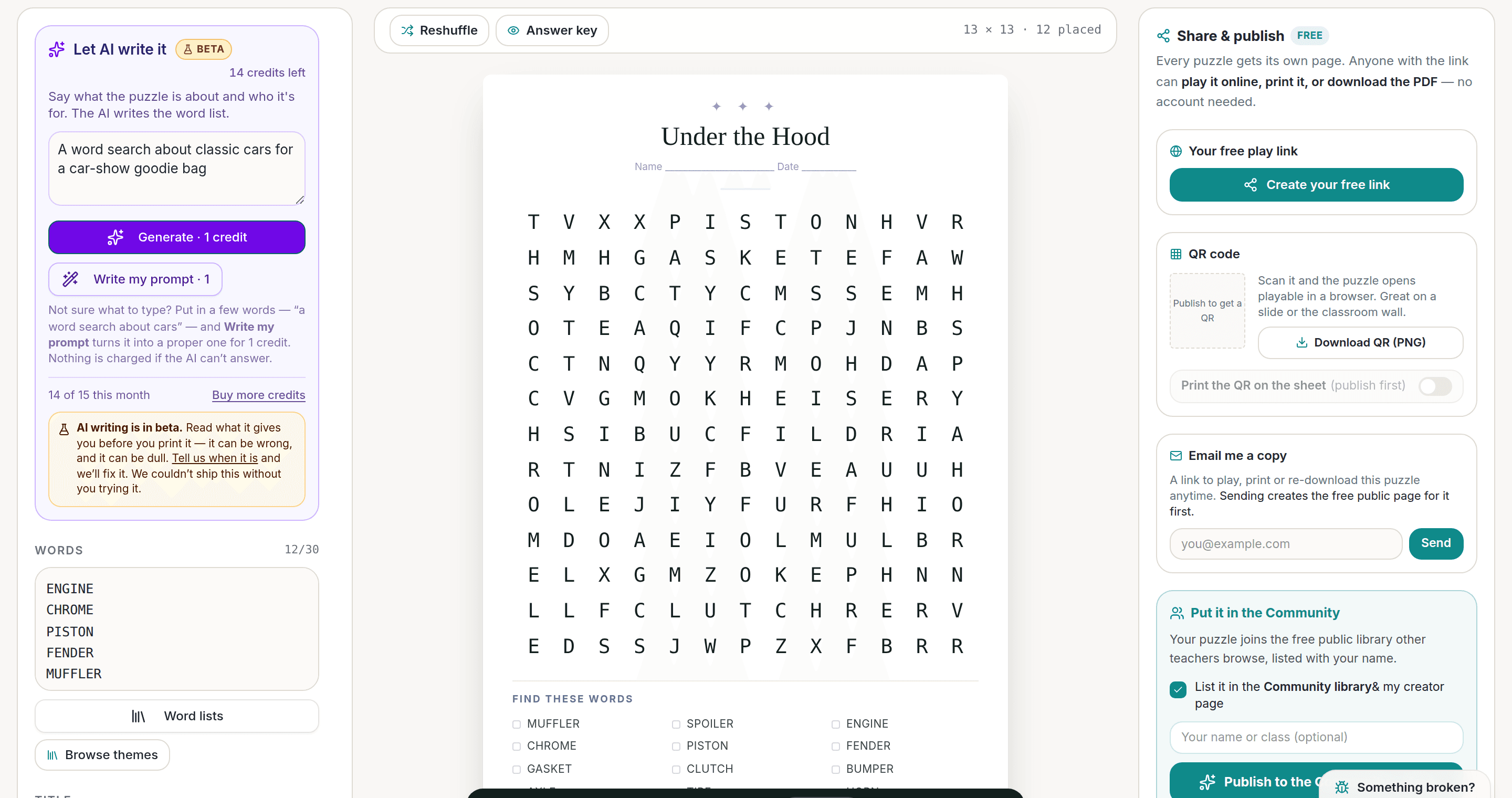
AI Puzzle Generator
Type a topic, get a themed word list and a finished puzzle. Premium also removes the footer credit and adds Word export.
Try the AI generator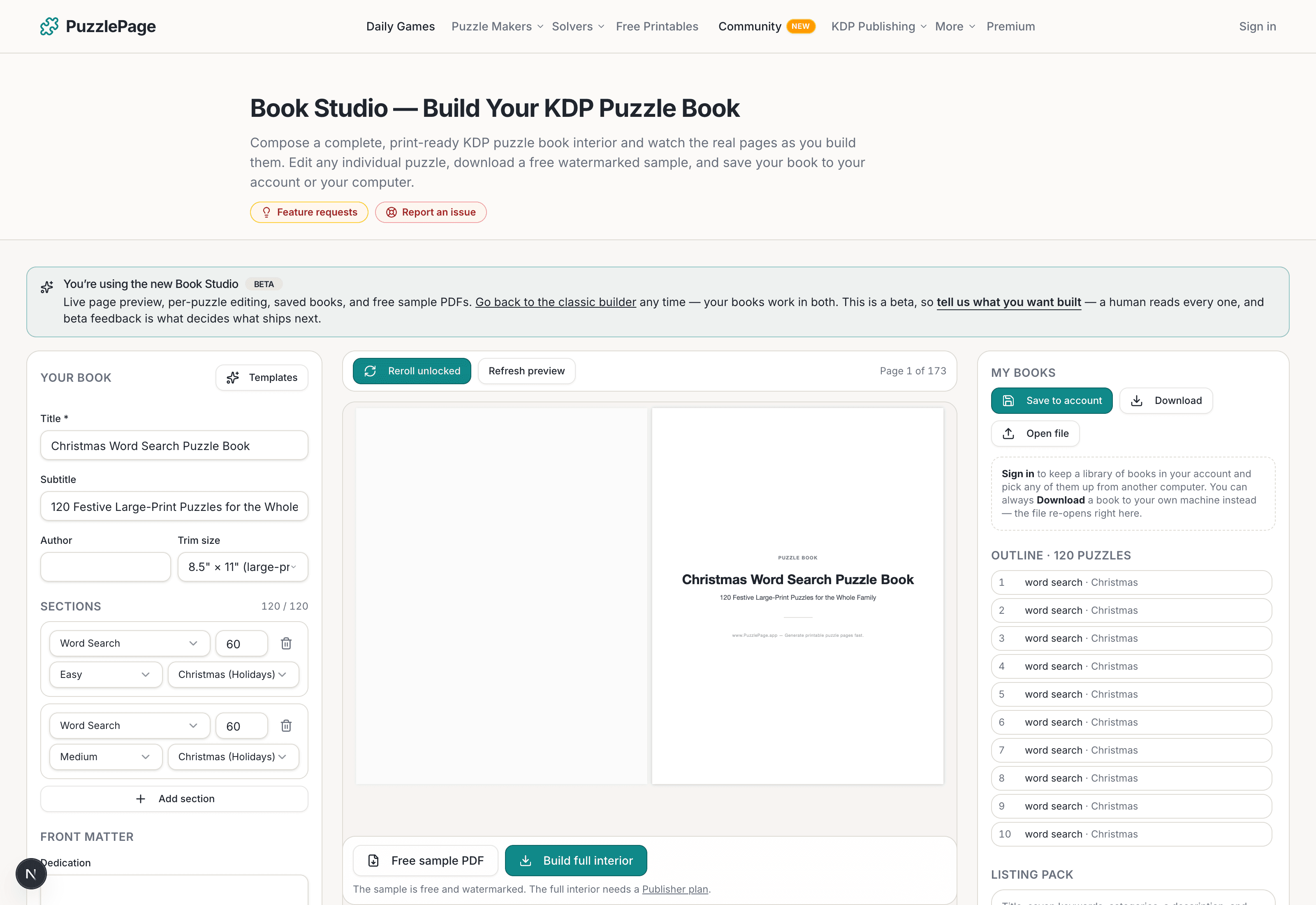
KDP Book Studio
Lay out a full puzzle book for Amazon KDP: templates, trim sizes, page checks and a cover designer.
Start a puzzle bookPremium removes the footer credit, adds Word export and custom styling across every maker.
See plans →Free daily games
Need a two-minute break? Today's puzzles are live.
A new Sudoku and a new Connections board every day. No download, no account.
Keep reading
Get 10 free puzzles
Get the free 10-puzzle pack
Enter your email and we'll send you 10 print-ready puzzles with answer keys, plus a heads-up when we publish new generators and seasonal puzzle packs. Same quality as the ones on this page.
Roughly two emails a month. No spam, unsubscribe anytime.
Enjoyed this? Share the puzzle on X
Like puzzles like this? Follow on Pinterest for a new one every day.